eBay Listings, Pricing Data, Card Details, and Printable Labels
Everything you need to know about eBay listings, pricing data, card details, and printable labels
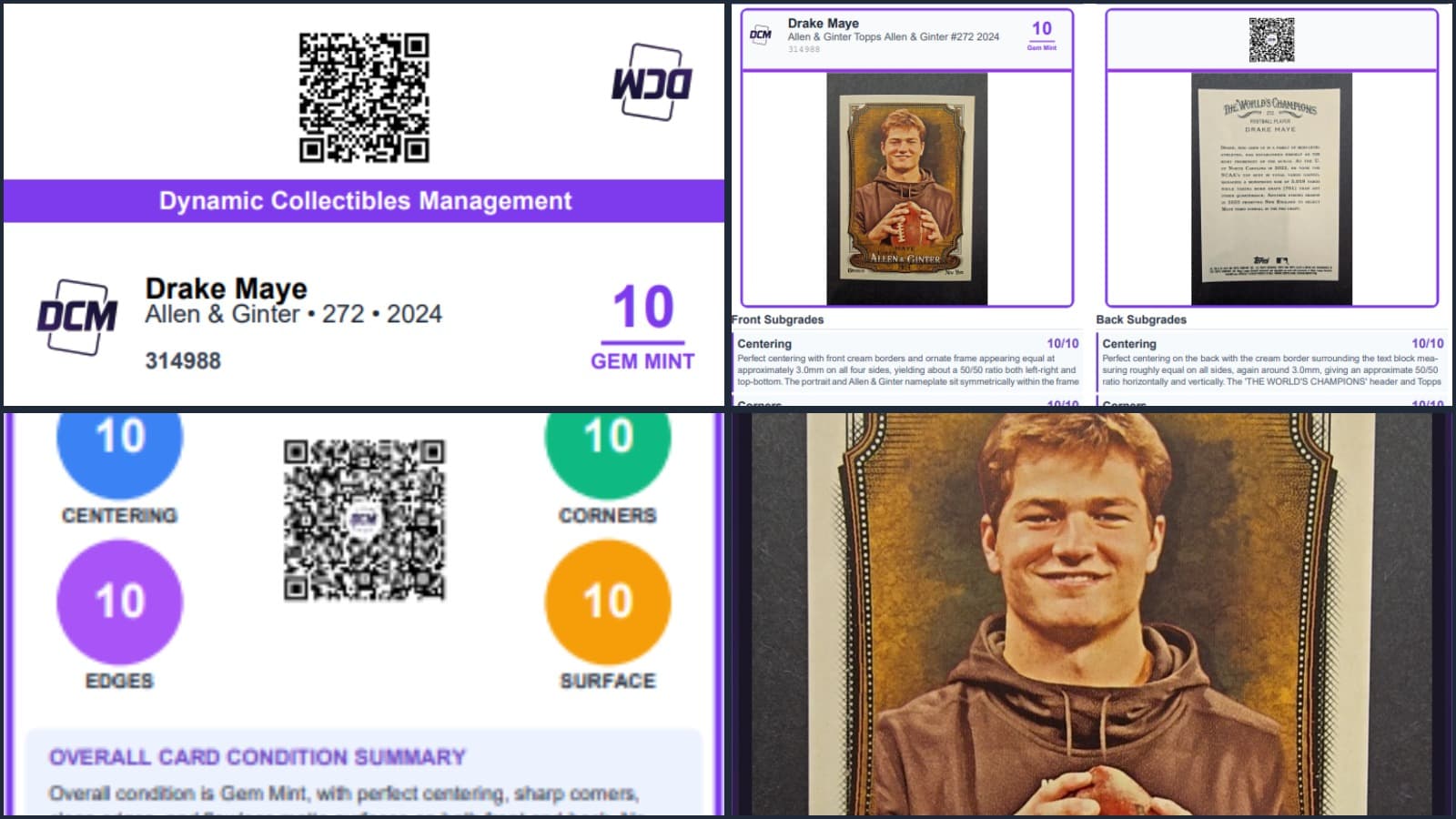
Labels, reports, graded card images, eBay sales listings and more
We recently heard from a collector who had a great set of questions about how to get the most out of their DCM Grading account. Chances are, if you're wondering the same things, you're not alone — so we turned the answers into this guide.
How Do I Use DCM Grades to List Cards on eBay?
One of the most powerful features of DCM is the eBay Insta-List button, found on every card details page (just scroll down past the grading report).
Here's how it works:
- Connect your eBay account — You'll be prompted to authenticate with eBay the first time. This is a one-time setup that links your eBay seller account to DCM.
- Click Insta-List — DCM will pre-fill an eBay listing tailored to your card, including:
- Images of the front and back of the card with the graded label overlay
- A mini condition report with a QR code linking back to the full card details page
- A pre-written description showcasing the card's graded condition, subgrades, and key details
- Choose your listing format — You can list as Buy It Now (fixed price) or Auction with your preferred duration
- Review and publish — Adjust the title, price, shipping options, and item specifics, then publish directly to eBay
The entire process takes just a couple of minutes, and you never have to leave DCM. Any fees incurred are standard eBay seller fees — DCM does not charge any listing fees. We're simply providing a tool to help you sell your graded cards more efficiently.
What Does "Public" vs. "Private" Mean?
At the top of every card details page, you'll see a toggle to switch the card between Public and Private.
- Public means anyone with the link or QR code can view the card's details page — the grade, subgrades, images, and condition report. This is great for sharing with potential buyers or on social media.
- Private means the card is only visible to you when you're logged in. If someone tries to visit the link, they won't be able to see it.
Important: Setting a card to "Public" does not mean it's listed for sale anywhere. It simply makes the card details page viewable to others. To actually sell the card, you'd use the eBay Insta-List feature or share the listing manually.
Can I Sell Cards Directly Through DCM?
The easiest way to sell cards through DCM is with the eBay Insta-List functionality described above. It's designed to make listing your graded cards as fast and painless as possible — complete with professional images, descriptions, and all the details buyers want to see.
We're always exploring ways to make selling even easier, so stay tuned for future updates.
Why Do Some Cards Have Prices and Others Don't?
DCM pulls live market pricing from active eBay listings to give you a sense of what your card is currently worth. You'll see this on both the collection page and individual card details pages.
However, not every card has an active market. If a card is particularly niche, rare, or from a less popular set, there may not be enough active eBay listings to generate a price estimate. In those cases, the price field will be blank.
A few things to keep in mind:
- Prices represent current active listings — they reflect what sellers are asking right now, not completed sales
- "Recently Sold" button — On the card details page, you can click through to see recently sold listings on eBay for that card, which gives you a better picture of actual market value
- Prices refresh automatically — Cached prices update periodically, and you can manually refresh from the card details page
Why Are Some Card Details (Set Name, Parallel, etc.) Missing?
DCM's AI grading system — DCM Optic — analyzes your card images to identify the card name, set, card number, parallel or insert type, and more. In most cases, it gets everything right. But occasionally, if the image quality is low or the card has unusual formatting, some fields may be left blank.
The good news: you can manually edit card details. On the card details page, you can update fields like set name, card number, and parallel/insert type. This is especially useful for:
- Older or obscure cards that the AI may not recognize
- Cards where the set name or variant isn't clearly visible in the image
- Adding details you want displayed on labels and in listings
Note: You can edit card information (name, set, number, etc.), but the grade and condition scores cannot be changed — those are locked in by the DCM Optic grading system.
What Else Should I Know? Labels & Reports
 Mag One Touch Label Front
 Mag One Touch Label Back
 Top Loader Label
One of the most underrated features of DCM is the ability to print professional labels for your cards. Whether you display in graded slabs, magnetic one-touch cases, or top loaders, we have a label format that fits.
Label Types
Every card details page has a Labels dropdown with the following options:
-
Label for Graded Slab — A duplex (double-sided) PDF sized at 2.8" x 0.8" to fit standard slab label slots. The front shows DCM logo, card info, and grade; the back shows a QR code, sub-scores, and any earned emblems. Print duplex (flip on long edge) and cut along the dotted guides.
-
Label for Magnetic One-Touch Slab — Designed for Avery 6871 labels (1-1/4" x 2-3/8"). A fold-over label where the top half wraps over the back of the slab, showing the QR code and grade info on both sides. Choose your label position on the sheet before printing.
-
Label for Toploader — Sized for Avery 8167 labels (1.75" x 0.5"). A compact front and back label pair that fits neatly on standard top loaders. Select your front and back positions on the label sheet.
-
Fold-Over Label for Toploader — Also uses Avery 8167 sheets, but as a single label that folds over the top edge of a toploader. The left half shows the grade and condition (visible from the front), and the right half shows a QR code (visible from the back). One label per card means you can fit up to 80 cards per sheet.
-
Card Images for Grade Label (Front & Back) — High-resolution images of your card with the DCM grade label overlaid, ready for online marketplaces, social media sharing, or anywhere you want to showcase your graded card.
Printing Tips
- Avery label templates — We use standard Avery template numbers (6871 for one-touch slabs, 8167 for top loaders) so you can buy label sheets from any office supply store
- Print individually or in bulk — Print a label from any card details page, or go to My Collection, switch to List View, select multiple cards, and batch print labels
- Calibration offsets — Each label modal includes fine-tuning controls so you can adjust for your specific printer's alignment
- Condition reports — In addition to labels, you can download full grading reports, mini-reports (PDF or image), all available from the Reports dropdown on every card details page
Quick Reference: Key Features at a Glance
| Feature | Where to Find It |
|---|---|
| eBay Insta-List | Card details page (scroll down) |
| Public/Private toggle | Top of card details page |
| Market pricing | Collection page + card details page |
| Recently sold on eBay | Card details page (eBay section) |
| Edit card details | Card details page (card info section) |
| Print labels | Card details page or My Collection (list view) |
| Bulk print | My Collection → List View → Select cards |
| Condition reports | Card details page (download/print buttons) |
Have more questions? We'd love to hear from you — reach out through our contact page and we'll get back to you as soon as we can.